Setting Up a Custom Domain for Server Side GTM with Stape and Vercel
Lately I've been exploring server side tagging to better understand the infrastructure behind modern measurement setups. One of the first things I experimented with was moving a Stape hosted Google Tag Manager server container from the default *.stape.io endpoint to a branded custom domain such as sgtm.{{yourdomain}}.com.
It's a relatively small change, but it helps establish first party infrastructure, improves brand consistency, and gives you greater control over your tracking environment. The setup was surprisingly straightforward and only took a few minutes to complete.
Here's how I configured a custom domain on Stape using Vercel.
Prerequisites
Before getting started, make sure you have:
- An active Stape server container
- A custom domain you control
- Access to your DNS provider (Vercel)
Step 1: Provision your custom subdomain on Stape
Open your Stape project and navigate to:
sGTM → Subdomains (Tagging Server URLs)
Register your desired subdomain, for example:
sgtm.{{yourdomain}}.com
Select Stape Global CDN as the hosting option. Once created, Stape will generate two CNAME records that need to be added to your DNS provider.
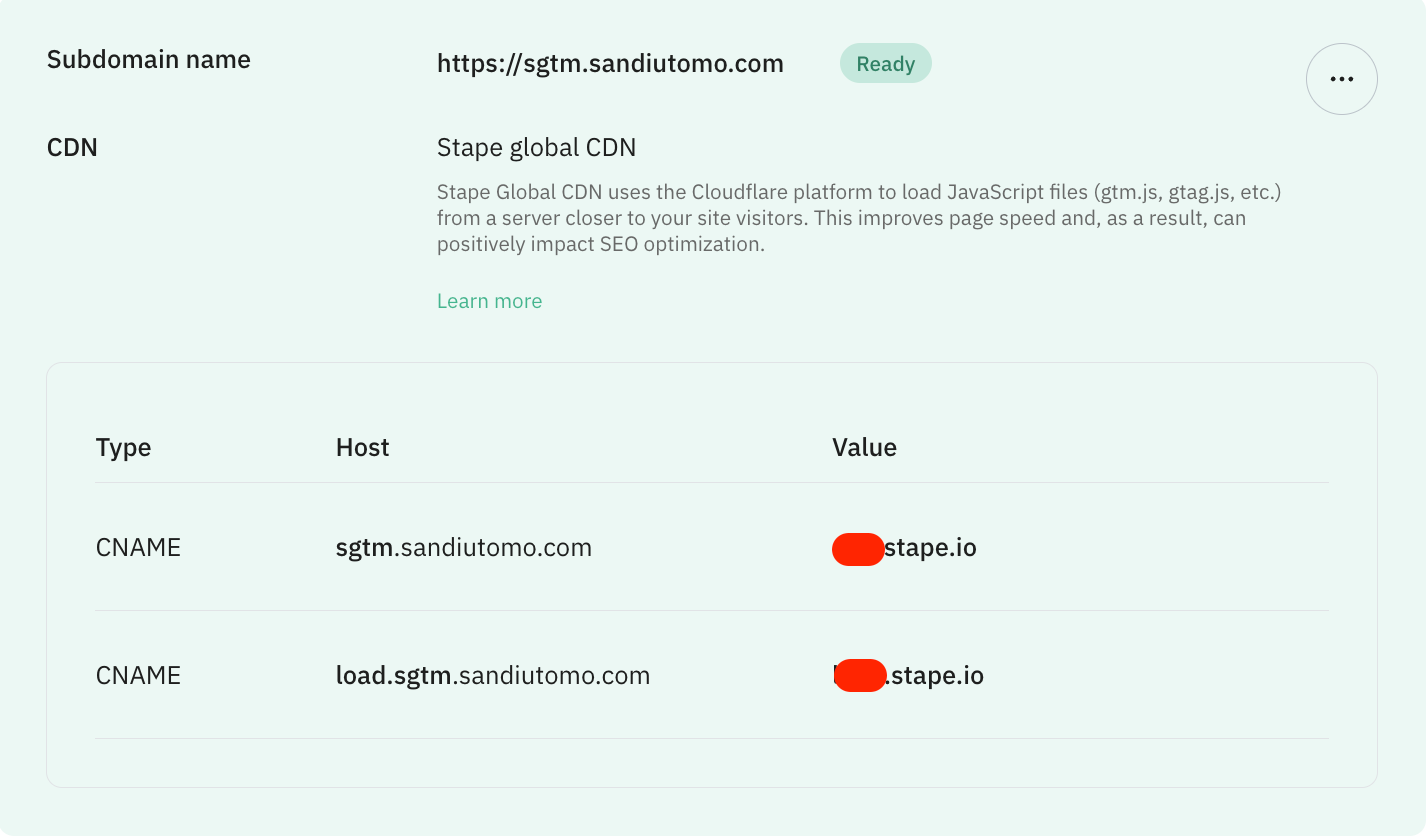
These records are used to verify domain ownership and route traffic through Stape's infrastructure. Keep the generated values handy, as you'll need them in the next step when configuring DNS in Vercel.
Step 2: Register the CNAME Records in Vercel
Open your Vercel dashboard and navigate to:
Project Workspace → Domains → Your Domain → View DNS Records
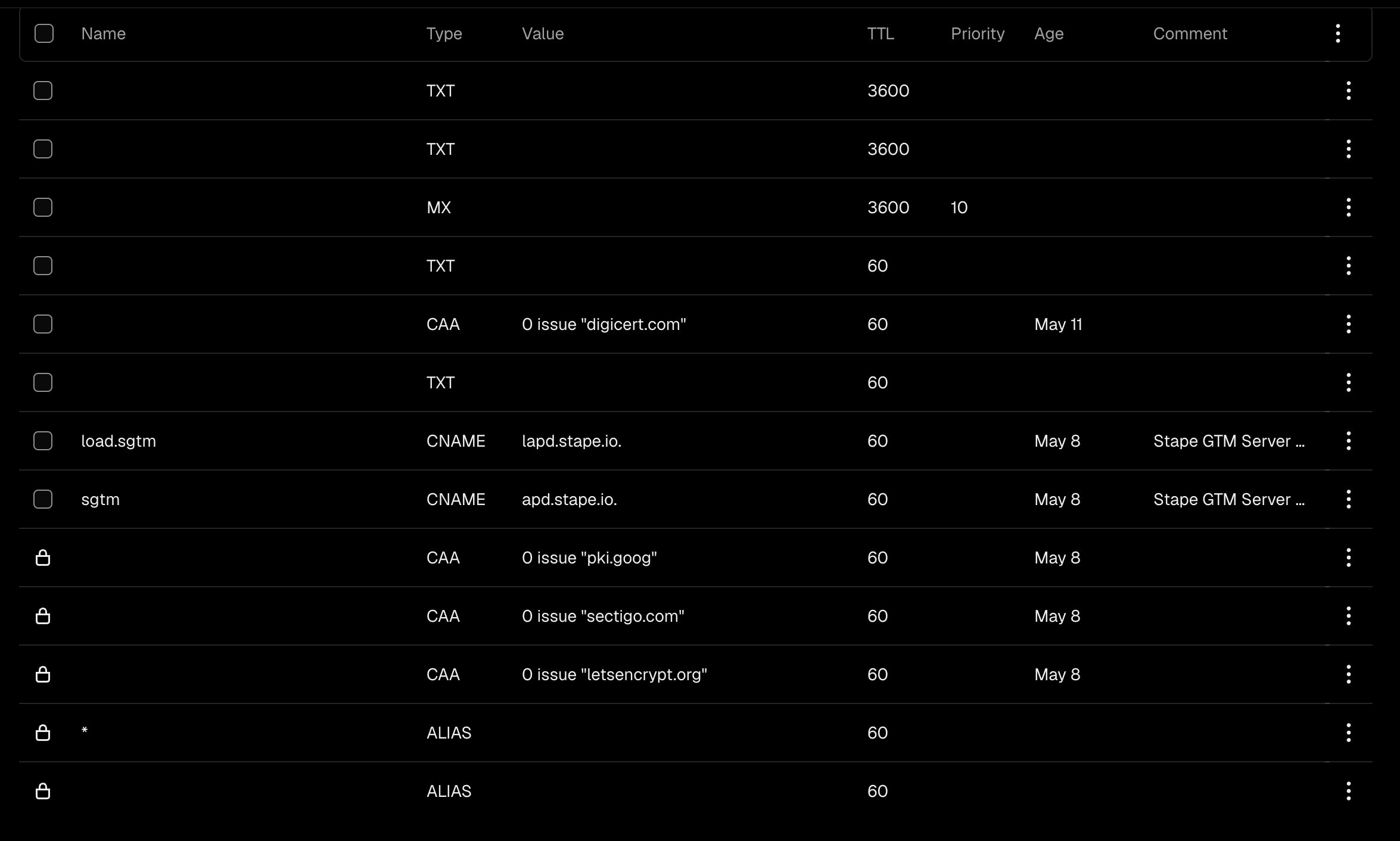
Register the CNAME record:
| Name | Type | Value |
|---|---|---|
| sgtm | CNAME | {{stape-generated-value}}.stape.io |
| load.sgtm | CNAME | {{stape-generated-value}}.stape.io |
If your domain uses CAA records, ensure the following certificate authorities are permitted:
- CAA 0 issue "digicert.com"
- CAA 0 issue "letsencrypt.org"
- CAA 0 issue "pki.goog"
- CAA 0 issue "sectigo.com"
Why? These records allow Stape to:
- Verify domain ownership
- Provision SSL certificates
- Route traffic through the tagging endpoint
After saving the records, DNS propagation will begin. Changes are often detected within minutes, but full propagation can take up to 72 hours depending on DNS caching and provider behavior.
You can monitor verification progress from both the Vercel Domains page and the STAPE Subdomains page. If the domain is not verified after some time, use the Google DIG Tool to confirm that the CNAME records are publicly visible.
In my case, DNS propagation took more than 72 hours. After some investigation, I discovered a missing DigiCert CAA record. Once added, the domain was verified and SSL provisioning completed within a few minutes.
Step 3: Update Your GTM Server Container URL
Once the custom domain has been verified and SSL provisioning is complete, update your Google Tag Manager server container to use the new endpoint.
Open your Server Container and navigate to:
Admin → Container Settings
Locate the Server Container URL setting and replace the default Stape endpoint with your custom domain:
https://sgtm.{{yourdomain}}.com
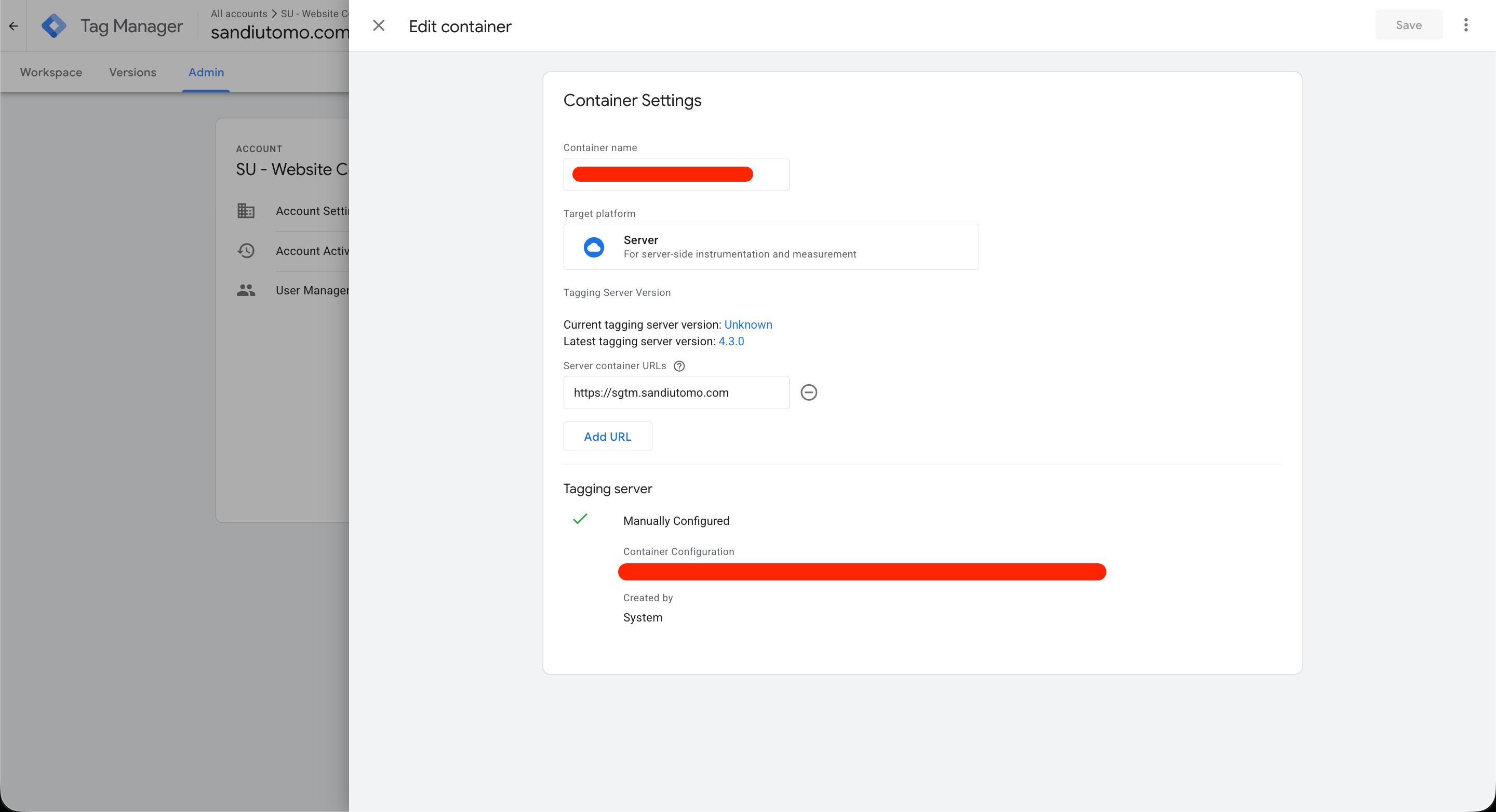
Save the changes and publish the container. Your server container will now use the custom domain as its endpoint URL.
Step 4: Verify the setup
After publishing the container, validate that everything is working correctly.
Open Preview Mode in both your Web Container and Server Container. The Web Container preview session must be active for the Server Container to receive and display debug events correctly. Once both preview sessions are running, send a test event from your website.
To confirm requests are being routed correctly:
- Open Developer Tools in your browser
- Navigate to the Network tab
- Filter for requests to your tagging endpoint
- Verify requests are being sent to your custom domain
You should see requests flowing through:
https://sgtm.{{yourdomain}}.com
instead of:
https://your-container.stape.io
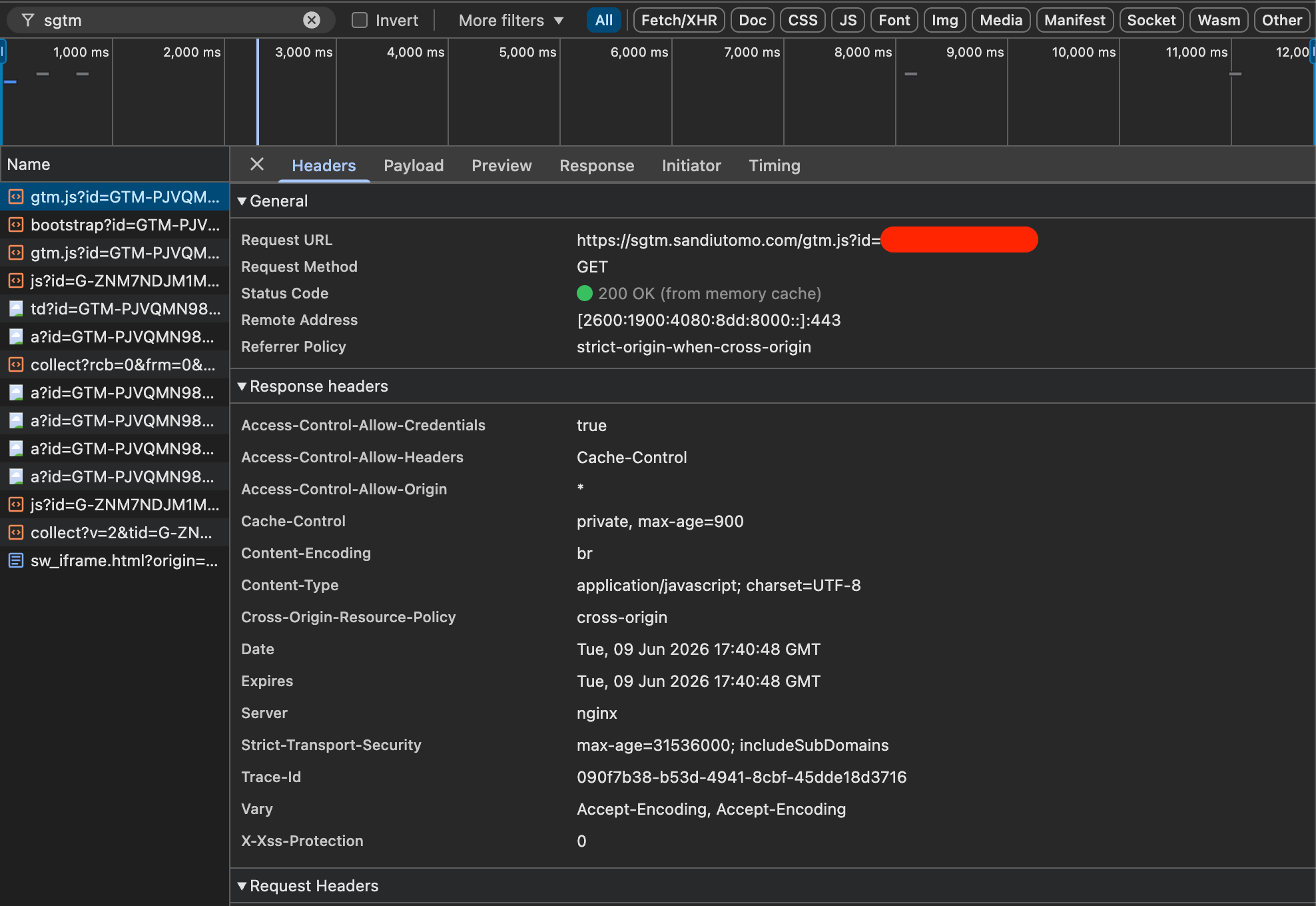
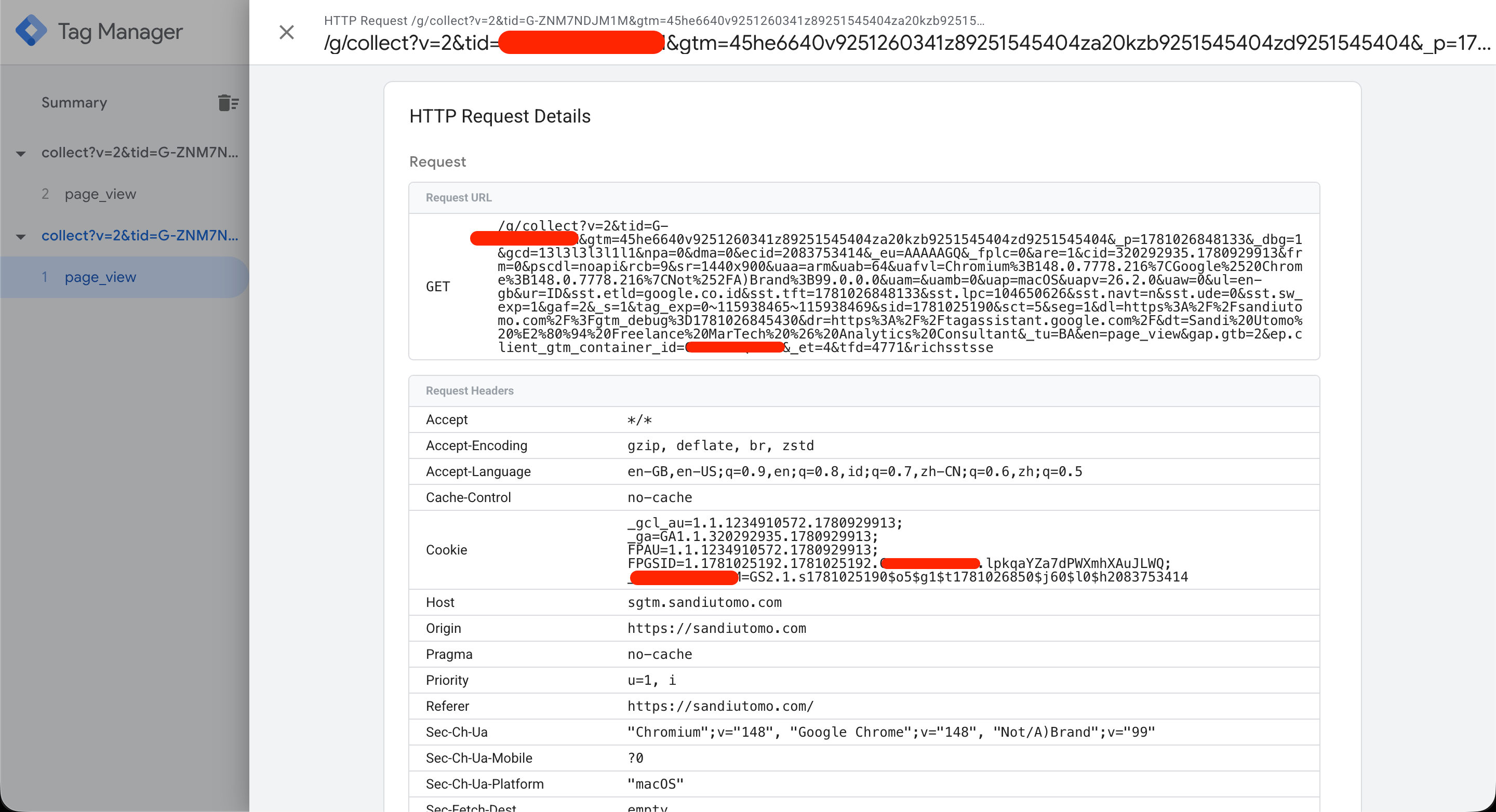
If events appear in both the Web Container and Server Container preview windows, your custom domain configuration is working correctly and traffic is successfully being routed through your new endpoint.
Final Thoughts
Setting up a custom domain for a Stape hosted server side GTM container turned out to be much simpler than I expected. Beyond the branding benefits, the process provided a useful introduction to DNS management, SSL certificate provisioning, request routing, and the fundamentals of first party measurement infrastructure.
If you're just getting started with server side tagging, configuring a custom domain is one of the easiest ways to become familiar with the infrastructure that powers modern analytics implementations.